
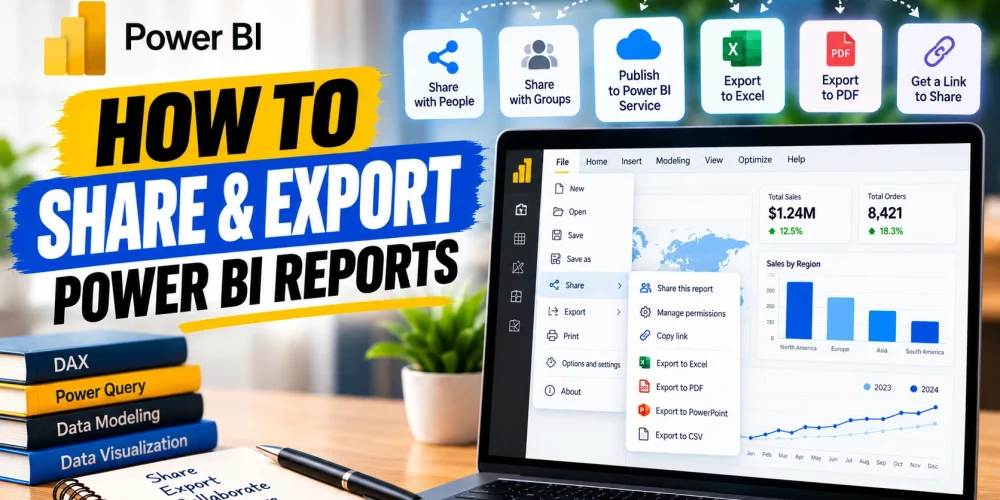
Creating a Power BI report is only one part of the job. Once the report is ready, you often need to send the information to someone who does not work inside Power BI every day. A manager may want a PDF, a finance team may need the numbers in Excel, or a sales team may want to explore the report directly. You may also need to present the same analysis in PowerPoint or share a dashboard with people who have different Power BI licenses.
Power BI provides several ways to handle these situations, but they are not interchangeable. Sharing a report gives someone access to the interactive Power BI experience, while exporting a report creates a separate file or extracts data from a visual. Your choice also depends on permissions, security settings, licensing, and where the report is hosted.
Power BI Sharing vs. Exporting: What’s the Difference?
The easiest way to understand Power BI’s sharing options is to separate them into two groups: live access and static output.
When you share a report, the recipient can open the Power BI report and interact with the available visuals, filters, slicers, and other report features. Their experience depends on the permissions you give them and their Power BI license or the capacity hosting the content.
Exporting works differently. Instead of giving someone access to the live report, you create an output such as an Excel file, PDF, or PowerPoint presentation. This is useful when someone simply needs the information rather than access to the complete Power BI environment.
For example, a manager who wants to explore regional sales can receive access to the Power BI report. Someone preparing a board meeting may only need the same report as a PDF. A financial analyst who wants to perform additional calculations may prefer an Excel export.
How to Export Power BI to Excel
If someone asks how to export Power BI to Excel, they are usually looking for one of two things: an Excel file containing the data behind a visual or a way to continue analyzing Power BI data in Excel.
Power BI allows users to export data from supported visuals. Depending on the visual, permissions, and report settings, you may be able to export summarized data or underlying data. Microsoft also provides different Excel export options depending on the type of connection and data being exported.
How to export Power BI to Excel from a visual
Open the report in the Power BI service and locate the visual containing the information you need. Select the More options (…) button in the top-right corner of the visual and choose Export data. Power BI will then show the export options available for that visual. Select the appropriate Excel option and export the file.
The exact choices can vary depending on the report, visual, permissions, and organization settings.
The basic process is:
- Open the Power BI report.
- Find the visual you want to export.
- Select More options (…).
- Choose Export data.
- Select the available Excel format.
- Choose the required data option.
- Select Export and open the downloaded file.
The exported Excel file represents the data available through that particular visual. It does not necessarily mean that Power BI will give you the entire underlying semantic model.
Read More: How to add a slicer in power bi
Summarized Data vs. Underlying Data
The distinction between summarized and underlying data is important when you export Power BI data.
Summarized data contains the information represented by the visual. For example, if a chart shows sales by country, the exported file may contain the countries and their aggregated sales values. This is useful when you only need the numbers displayed in the report.
Underlying data provides more detailed information behind the visual when that option is available and you have the required permissions. The amount of detail can vary depending on the semantic model, visual, security configuration, and export settings.
For example, a Power BI chart might show:
| Country | Sales |
| USA | $250,000 |
| UK | $180,000 |
| Canada | $120,000 |
A summarized export could contain data at this level. An underlying-data export may provide much more granular records, depending on how the report and semantic model have been configured.
How to Export Data From Power BI With Filters
One useful feature of Power BI exports is that your report selections can affect the information represented by the visual. If you use slicers or filters to narrow the report to a particular year, region, product, or customer segment, the visual reflects those selections before you export its data.
For example, imagine a sales report filtered to:
Year: 2026
Region: Europe
Product: Software
When you export the relevant visual, the resulting data can reflect those selections rather than the entire dataset.
This makes Power BI useful when you need smaller, focused Excel files for different teams. Instead of exporting a large dataset and manually filtering it in Excel, you can first configure the report and then export the relevant visual.
Still, check the exported file before sharing it. The available data can depend on the visual, filters, permissions, and export type.
How to Share a Power BI Report
If the recipient needs to interact with your report, exporting it may not be the best approach. In that situation, you can share the Power BI report and allow the person to work with the live report according to the permissions they have.
To share a report, open it in the Power BI service and select Share. You can then choose the appropriate sharing method, enter the people or groups who need access, configure available permissions, and send the report link.
Power BI supports different sharing scenarios, including sharing with specific people or people within your organization. The exact options depend on your organization’s Power BI environment and permissions.
One important point is that having the report URL does not automatically mean someone can access the report. The recipient must have the required permissions and, in many cases, an appropriate Power BI license or access through qualifying capacity.
How to Share a Dashboard in Power BI
A Power BI dashboard is different from a report. Dashboards bring together important tiles and metrics into a high-level view, making them useful for monitoring business performance.
To share a dashboard, open the dashboard in the Power BI service and select Share. Add the people or groups who should have access and configure the available permissions.
Think about what the recipient actually needs before giving additional permissions. Someone who only needs to view a dashboard may not need permission to reshare the content or build new content from its underlying data.
Security is particularly important here. Hiding a visual or page is not a replacement for proper data security. If different users should see different records, features such as Row-Level Security (RLS) may be required.
How to Share Power BI With Free Users
Sharing with free users is one of the areas that causes the most confusion in Power BI. A recipient having a free Power BI license does not automatically mean they can open every report that you send them.
The key factors are the user’s license and the capacity where the report and its underlying semantic model are hosted.
In a regular shared-capacity environment, users generally need Power BI Pro or Premium Per User (PPU) to access content shared with them. However, free users can view certain shared content when it is hosted in qualifying Power BI Premium or Microsoft Fabric capacity, subject to the applicable permissions and configuration.
This means you should check the environment before deciding how to share a report with a free user. For example, suppose you create a report in a normal shared workspace and send the link to someone using Power BI Free. They may not be able to open it simply because they have a Power BI account. If the content is hosted in qualifying capacity, the experience can be different.
How to Export Power BI to PDF
PDF is a practical choice when the recipient needs a fixed version of your report for reading, printing, documentation, or email.
In the Power BI service, open the report and use the Export option to choose PDF. Depending on the report and available settings, you can choose options related to current or default values, hidden pages, and the current report page.
Each report page is represented as a page in the resulting PDF. The important difference is that the PDF is a static representation of the report rather than an interactive Power BI experience.
This makes PDF particularly useful for monthly management reports. You can prepare the report, apply the required filters, export it, and send the resulting document to stakeholders who only need to review the information.
If the recipient needs to change filters or investigate a specific visual, however, sharing the live report is more appropriate.
How to Export Power BI to PowerPoint
PowerPoint is useful when Power BI analysis needs to become part of a presentation. Instead of rebuilding charts manually, you can export the Power BI report to a PowerPoint presentation.
Open the report in the Power BI service, select Export, and choose PowerPoint. You can then configure the available export options and download the presentation.
One important detail is that Power BI does not simply convert every visual into a normal editable PowerPoint chart. Report pages are exported as high-resolution images on PowerPoint slides. This means the presentation can look like your Power BI report, but the individual visuals are not necessarily editable PowerPoint objects.
The exported presentation can also include a link back to the original Power BI report, making it easier for someone to move from the static presentation to the live report.
Exporting Power BI vs. Embedding Power BI in PowerPoint
These two options sound similar, but they serve different purposes. When you export Power BI to PowerPoint, you create a static presentation. It is useful for presentations, reports, and meeting documents where the content does not need to change during the presentation.
When you embed Power BI in PowerPoint, you can use a live Power BI report page within the presentation. This allows you to interact with the Power BI content during the presentation, subject to the required access and licensing.
For example, imagine you’re presenting quarterly sales results. With a static PowerPoint export, you can show the results exactly as they were exported. With an embedded Power BI report, you can potentially change filters and explore different parts of the analysis while presenting.
The second approach is therefore more suitable when the presentation itself needs to include live analysis.
Can You Embed Power BI on a Website?
Power BI can also be embedded into websites and portals, but there is an important distinction between secure embedding and Publish to web.
Secure embedding is designed for situations where access to the report needs to remain controlled. Users still need the appropriate permissions and licensing or capacity access.
Publish to web works differently. It creates a publicly accessible version of the report, meaning people can view it without signing into Power BI.
That makes Publish to web suitable only for information that is appropriate for public distribution. It should not be used for confidential business information, customer data, financial information, or other sensitive content.
For internal reports, use a secure sharing or embedding approach instead of treating Publish to web as a general sharing method.
Why Can’t I Export Data From Power BI?
Sometimes you may open a Power BI report and find that Export data is unavailable. This does not necessarily indicate a technical problem.
Power BI allows report designers and administrators to control data export. Your organization may have disabled exports, or the report designer may have restricted certain types of data export. Your permissions can also determine whether summarized or underlying data is available.
Some common reasons include:
- Data export has been disabled by the administrator.
- The report designer has restricted exports.
- Your permissions do not allow access to underlying data.
- The selected visual does not support the requested export.
- Security settings limit the information available to you.
- Organizational data protection policies restrict exporting information.
This is particularly important for business reports containing sensitive information. Restricting exports can prevent users from moving data from a controlled Power BI environment into an unrestricted Excel file.
Which Power BI Export or Sharing Option Should You Use?
The right option depends on what the recipient needs to do with the information.
| Goal | Suitable option |
| Explore the live report | Share the Power BI report |
| Send a printable version | Export to PDF |
| Use report data in Excel | Export data to Excel |
| Present report pages | Export to PowerPoint |
| Explore live data during a presentation | Embed Power BI in PowerPoint |
| Share a high-level performance view | Share a dashboard |
| Give users controlled access to different data | Share with appropriate security, such as RLS |
| Make non-sensitive information publicly available | Publish to web |
The important distinction is between accessing the analysis and receiving a copy of the analysis. Sharing keeps the user connected to Power BI, while exporting creates an output that can be used outside the original report.
A Simple Example of Sharing a Power BI Report
Imagine you’ve built a monthly sales report for a company. The sales manager wants to explore sales by region and product, so you share the live Power BI report with them. The finance team needs to perform additional calculations, so you export the relevant sales visual to Excel. The CEO wants a document for a management meeting, so you export the report to PDF.
Meanwhile, the marketing team is preparing a presentation and needs the report pages in their slides, so you export the relevant pages to PowerPoint.
If you are presenting the analysis yourself and expect people to ask questions about different regions or products, embedding the live Power BI report in PowerPoint can be more useful than using a static export.
Once you understand the difference between sharing, exporting, and embedding, Power BI becomes much easier to distribute across different teams and workflows. You are not limited to one format. The same report can be shared interactively, exported to Excel for analysis, converted into a PDF for documentation, or brought into PowerPoint for a presentation.