
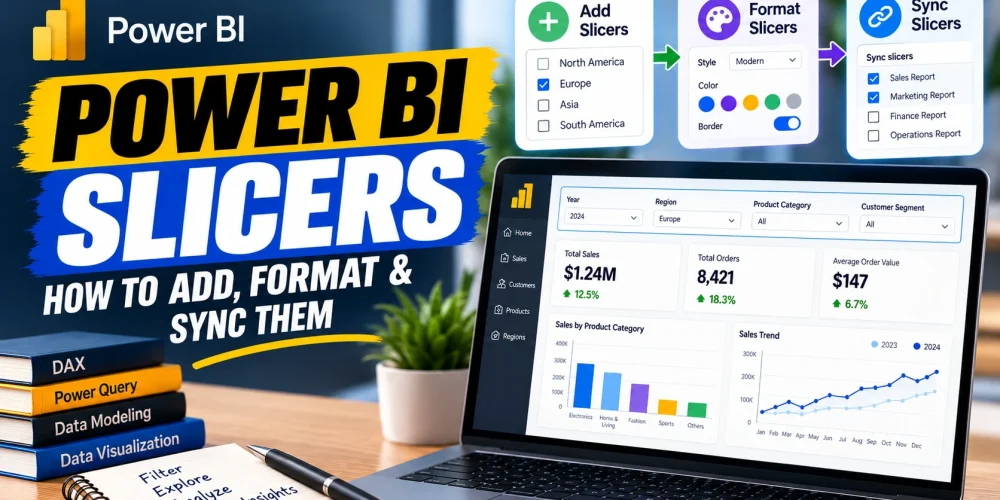
A Power BI dashboard can contain all the information a user needs and still feel difficult to explore. The problem is often not the data itself. It is the lack of an easy way to narrow it down.
Imagine opening a sales dashboard and seeing revenue for every country, product, customer segment, and month at once. The report may be accurate, but the user still has to dig through the numbers to find the view they need. A slicer changes that interaction. Select “Germany,” choose “2026,” or pick a product category, and the report responds immediately.
That simple interaction is one of the reasons slicers are so common in Power BI reports. But adding a slicer is only part of the job. Its field, selection behavior, visual design, and relationship with other report pages all affect how useful it becomes.
So, instead of treating a slicer as just another Power BI visual, it is better to understand how it fits into the overall report experience.
What Is a Slicer in Power BI, Really?
A slicer is an interactive filtering visual that lets users control the data displayed in other visuals on a report page. Unlike filters hidden inside the Filters pane, slicers are placed directly on the canvas, making the filtering options visible to the person using the report.
Consider a sales dashboard with a column chart showing monthly revenue. If you place a Region field in a slicer, the user can select “Europe” and immediately see the chart in the context of European sales.
The important point is that the slicer does not change the underlying data. It changes the filter context in which Power BI evaluates the visuals.
That makes slicers particularly useful when the same report needs to answer different questions for different users. A manager may want to see total sales for the entire business, while a regional manager may only care about one market. The dashboard can support both without creating separate reports.
How to Add a Slicer in Power BI
The process is simple. Deciding what the slicer should control is where the more important decision happens.
Suppose you are building a sales report and want users to explore performance by region.
Start by selecting the Slicer visual from the Visualizations pane. An empty slicer will appear on the report canvas.
Next, drag the Region column from the Data pane into the slicer’s field area. Power BI will populate the visual with the available region values.
Now select one of those values. The other visuals on the page should respond to the selection. For example, if the report contains:
- A total revenue card
- A monthly sales chart
- A product performance table
selecting Europe in the slicer can make all three visuals show results within that region.
The same approach works with fields such as Product Category, Customer Segment, Salesperson, Country, Year, or Month.
The choice of field matters, though. A slicer should normally represent something users are likely to compare or investigate. Adding a slicer simply because a column exists in the dataset usually creates more interface clutter than analytical value.
The Slicer Type Changes the Experience
Power BI does not force every slicer to behave like a long list of values. You can change how users make their selections depending on the data.
A list works well when there are only a few options and you want them visible at all times. A dropdown becomes more practical when the field contains many values.
For example, displaying five sales regions as a list is perfectly reasonable. Displaying 150 countries in the same way takes up valuable dashboard space.
Date fields introduce another use case. Instead of presenting individual dates as a long list, a date slicer can allow users to work with a range, such as selecting data from January through June.
This is one reason slicer design should follow the analytical question. The goal is not simply to display a field. It is to make the intended filtering action obvious.
Making a Slicer Easier to Use
Once the slicer is working, the next question is how much control the user actually needs. Suppose a report has a Product Category slicer. If users are normally expected to examine one category at a time, single selection may make sense. If they frequently compare several categories, multi-selection is more appropriate.
Search can also become important when the number of values grows. A user looking for one customer among hundreds should not have to scroll through the entire list.
These choices are easy to overlook because they do not change the underlying analysis. They change how quickly someone can reach the analysis.
That distinction matters in dashboard design. A technically correct slicer can still be frustrating if users have to fight the interface to make a simple selection.
How to Format Slicers in Power BI
Formatting a slicer is not just about making it look attractive. It should help users understand the report and recognize which controls belong together.
Select the slicer and open the Format pane. From there, you can adjust elements such as the title, text, background, border, spacing, and other visual properties. Start with the title. Instead of leaving users to guess what a slicer controls, use a direct label such as Sales Region, Order Year, or Customer Segment.
Then consider its size and placement. A slicer that controls the entire dashboard usually deserves a visible position near the top of the page. A secondary filter can be smaller or placed alongside related controls.
The visual treatment should also match the rest of the report. If your dashboard uses clean cards, restrained borders, and consistent typography, the slicers should follow the same visual language.
Good formatting makes the slicer feel like part of the report rather than an object that was added afterward.
What Happens When You Have Multiple Report Pages?
This is where slicers become more interesting. Imagine a Power BI report with four pages:
Sales Overview → Product Analysis → Customer Analysis → Regional Performance
The user selects 2026 on the Sales Overview page and then moves to Product Analysis. If the second page does not retain that selection, the user may have to apply the same filter again.
That creates unnecessary friction. Power BI provides Sync slicers specifically for this situation.
How to Sync Slicers in Power BI
To learn how to sync slicers, first select the slicer you want to use across pages. Then open the View tab and select Sync slicers. Power BI will display a pane where you can control the pages connected to that slicer.
You can decide which pages should contain the slicer and which pages should respond to its selection. This creates an important distinction between showing a slicer and syncing a slicer.
A slicer can remain hidden on a page while its filtering effect is still applied there. That can be useful when you want users to make their main selections on a dashboard landing page but keep those selections active while navigating through the rest of the report.
For example, a user could select:
Year: 2026 | Region: Europe
on the main page and then move through product and customer analysis without repeatedly applying the same filters.
When Syncing a Slicer Creates Problems
Synchronization is useful, but it should not automatically be applied to every slicer.
Consider a report where the first page focuses on regional sales and another page focuses on customer acquisition. A Region slicer may make sense on the first page but may have little analytical value on the second.
Syncing every available filter across every page can make the report harder to reason about. Users may not realize that a selection made several pages earlier is still affecting their current numbers.
This is one of the less obvious issues with synced slicers: filter persistence can improve consistency, but it can also reduce transparency if users do not understand the active filter context.
That is why synchronized slicers should be used when the same analytical context genuinely needs to continue across pages.
Slicers Don’t Always Need to Control Every Visual
Another useful part of slicer design is deciding which visuals should respond to a selection. Power BI allows you to control visual interactions. A slicer might need to filter a chart but not affect a KPI card, or it might need to influence one visual while leaving another unchanged.
This becomes useful when a dashboard contains both contextual and comparative information.
For example, a report might show total company revenue alongside regional revenue. You may want the Region slicer to change the regional analysis while keeping the overall company figure visible for comparison. In that situation, allowing every visual to respond to the slicer would remove useful context.
A Practical Way to Think About Slicers
The easiest way to design slicers is to work backward from the questions users are expected to answer.
If users frequently ask: “How did sales change by region?” a Region slicer makes sense.
If they ask: “How did this product perform during a specific period?” a Product and Date slicer may be useful.
If the same question continues across several pages, syncing the relevant slicers can make navigation much smoother.
This approach prevents the report from becoming a collection of filters. Instead, every slicer has a clear analytical purpose.
And that is ultimately what makes a Power BI slicer useful. The feature itself is simple. The real value comes from deciding what users need to control, how that control should behave, and how much filtering context should follow them through the report.